
Put the game on a TV
Every way to get the game on a big screen — and the one rule: never mirror the host phone, it shows the answers.
-
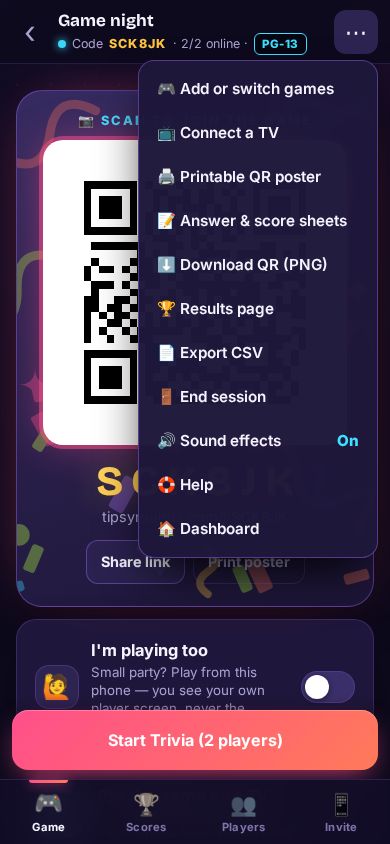
Step 1: Open Connect a TV
On the host screen tap ⋯ and then 📺 Connect a TV. A TV needs a free account.
-
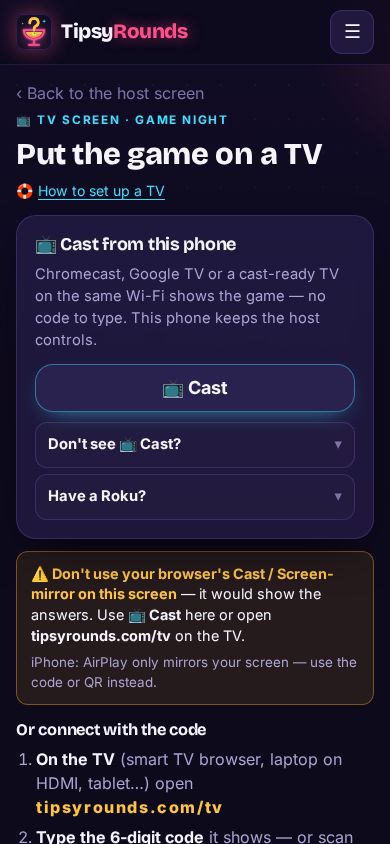
Step 2: Chromecast? Tap Cast
With a Chromecast or Google TV on the same Wi-Fi, tap 📺 Cast (Chrome on Android or a computer). Nothing to type.
-
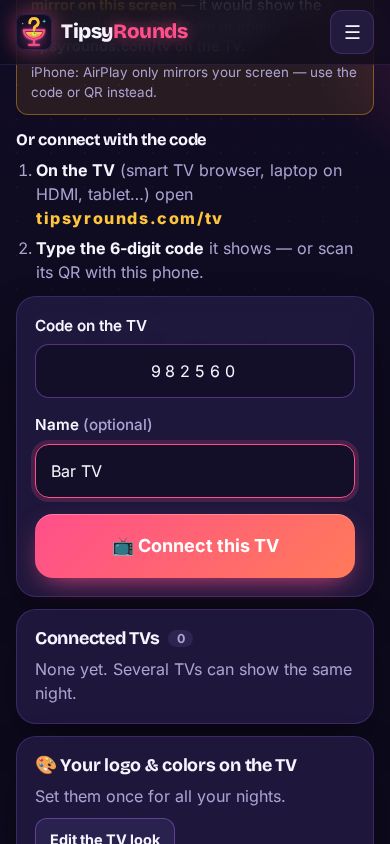
Step 3: Any other TV: the code
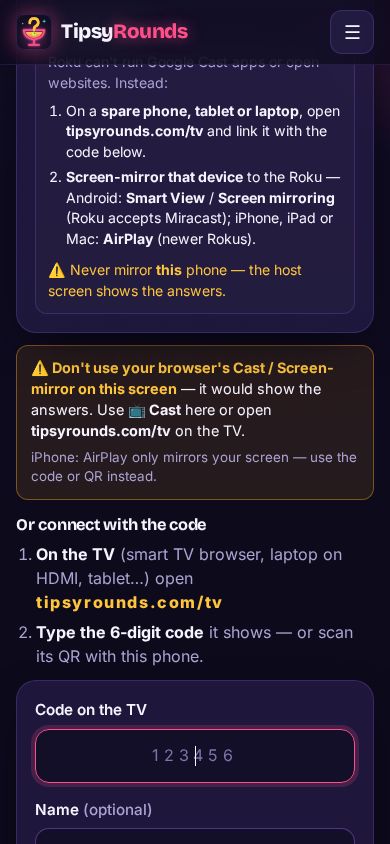
Open tipsyrounds.com/tv in the TV’s browser (or a laptop plugged in by HDMI), then type the 6-digit code it shows and tap 📺 Connect this TV.
-
Step 4: The TV shows the room view
The join QR, the questions, reveals and scores. It shows an answer only once you reveal it — never host controls or room PINs.
📺 TV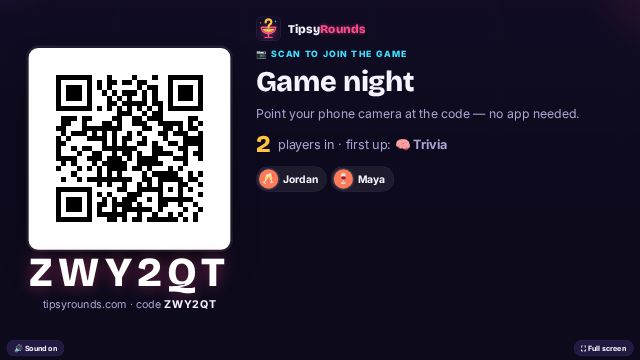
-
Step 5: Never mirror the host phone
Screen mirroring, AirPlay or your browser’s own Cast on the host screen would show everyone the answers. Use 📺 Cast or tipsyrounds.com/tv instead.
Good to know
- A TV is optional — every game works on phones alone.
- Several TVs can show the same night. Disconnect one any time from Connected TVs.
- Free nights show a few sponsor spots on the TV too; paid plans make them ad-free.
Still stuck? Contact us — a real person reads every message. · All help articles